# Code completion
Get inline code suggestions while you type, powered by a local model through [Ollama](https://ollama.com).
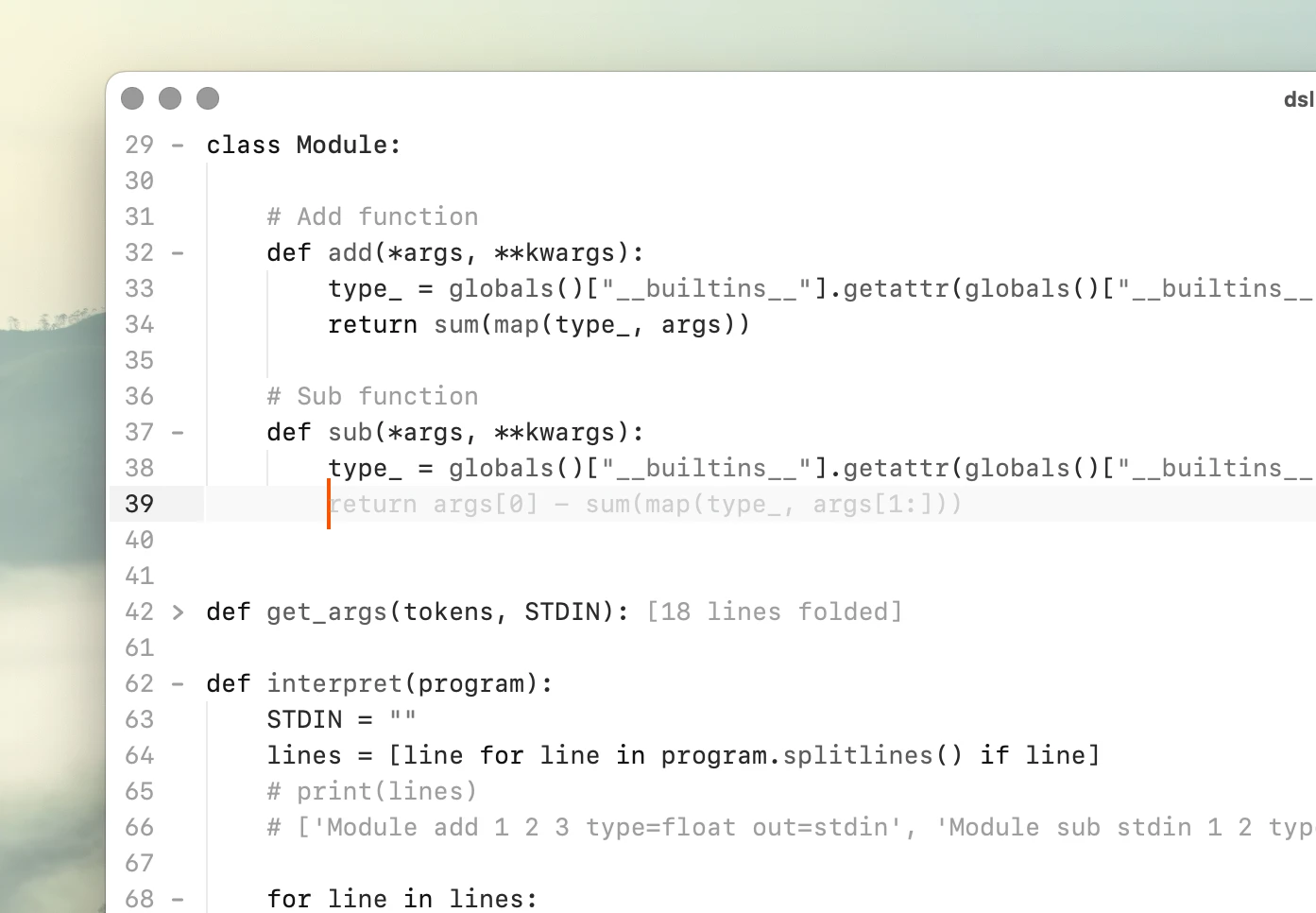
Completions appear as ghost text in the editor and only become part of the document when you accept them.
## How it works
Koi generates completions while you type or after starting a new line.
A small amount of code before and after the cursor is sent to the configured completion model.
The model uses this context to predict the rest of the current line.
The context is deliberately kept small.
Larger contexts can give the model more information, but they also take longer to process.
For something that runs while you type, keeping latency low is more important than giving the model an entire project.
### Fill-in-the-middle
Code completion works best with models that support fill-in-the-middle (FIM) generation.
FIM models use code on both sides of the cursor when generating a completion.
This makes them particularly useful when editing existing code, where what comes after the cursor can be just as relevant as what comes before it.
## Accepting completions
Suggestions are displayed as ghost text and do not modify the document until you accept them.
| Action | Result |
|:-------|:-------|
| Tab | Accept the current code completion. |
If no completion is visible, Tab continues to work normally.
The command used to accept completions can be changed in the configuration:
```ini
accept_code_completion tab
```
The value is an editor command rather than a keyboard shortcut.
This allows completion acceptance to share an existing command without taking over its normal behavior.
For example:
```ini
accept_code_completion move_caret_line_end
```
With the default bindings, ⌘ Command + → or ⌃ + E will accept a visible completion.
When there is no completion, the command simply moves the cursor to the end of the line as usual.
Continue typing or move the cursor and the current suggestion disappears.
## Local models with Ollama
Code completion runs locally through [Ollama](https://ollama.com).
Install Ollama and choose a coding model from the [Ollama model library](https://ollama.com/search).
A model with fill-in-the-middle support is recommended.
For example:
```shell
ollama pull qwen2.5-coder:1.5b
```
See the models installed on your Mac with:
```shell
ollama list
```
You can also run the command from Koi's inline shell:
```shell
% ollama list
```
The output includes the model name:
```text
NAME ID SIZE
qwen2.5-coder:1.5b 6d3abb8d2d53 986 MB
```
Use the name from the NAME column in your Koi configuration.
Small coding models are often a good fit for inline completion because they can generate suggestions quickly on local hardware.
Larger models may produce better predictions, but usually at the cost of higher latency.
## Configuration
Open the Koi configuration file with:
| Action | Result |
|:-------|:-------|
| ⌘ Command + , | Open the configuration file. |
Navigate to the models section and add your completion model:
```ini
[models]
code_completion qwen2.5-coder:1.5b
```
The value should match the model name reported by ollama list.
To disable code completion, remove or comment out the setting:
```ini
[models]
-- code_completion qwen2.5-coder:1.5b
```
When no completion model is configured, Koi does not make completion requests.
## Why one line?
Koi generates one-line completions rather than automatically suggesting large blocks of code.
Short suggestions are faster to generate, easier to evaluate, and less disruptive while editing.
They also keep the model from making large changes when you only wanted help finishing the line you're writing.
A completion remains only a suggestion until you accept it.
If it is useful, accept it.
If it isn't, keep typing.
The aim is to make completion part of normal editing rather than something that takes over the editor.